Upload the statement
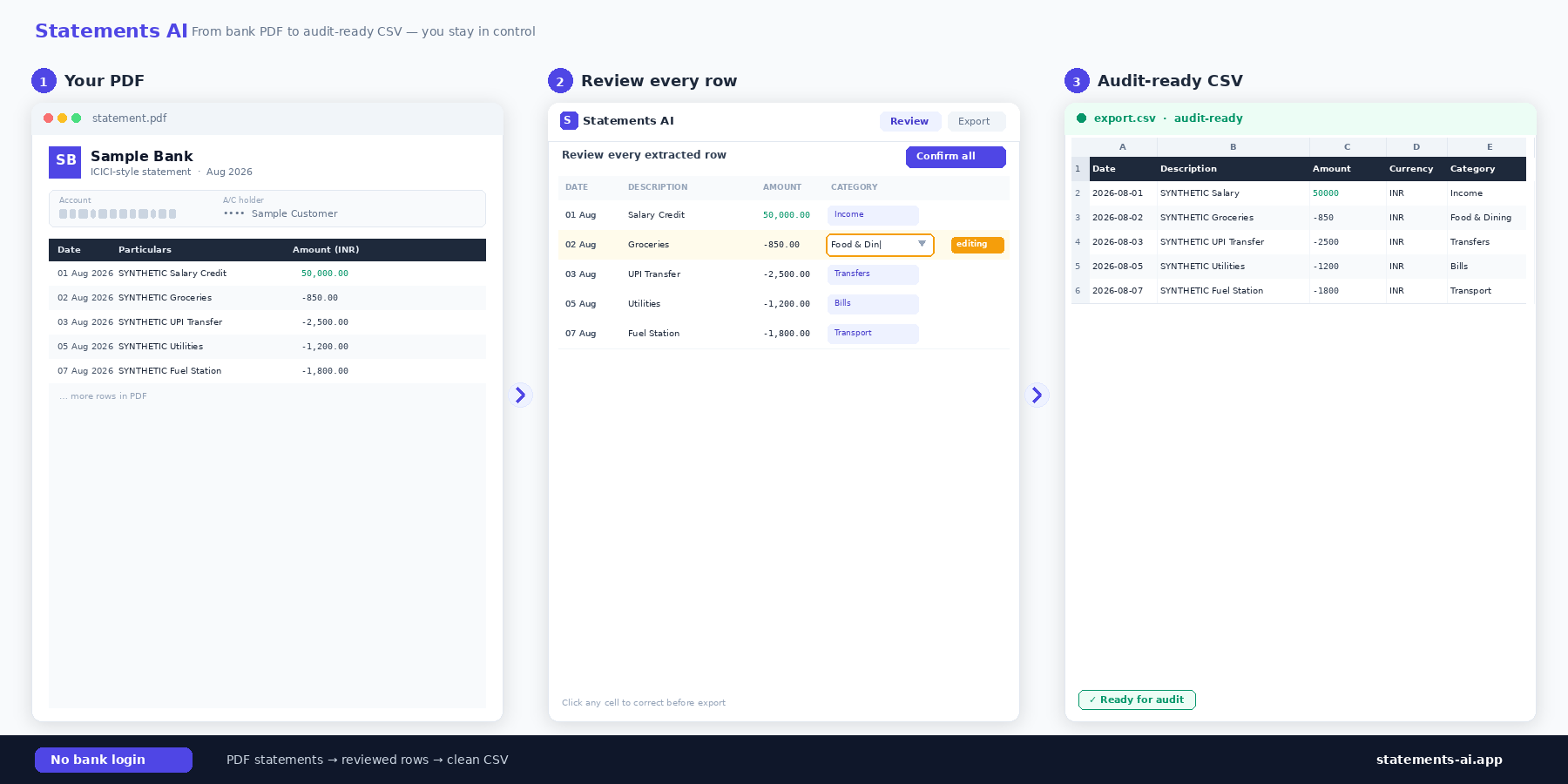
Choose one or several PDFs, including password-protected files. The interface confirms the files before processing starts.
 Statements AI
Private statement analysis
Upload a statement. Statements AI extracts transactions, flags rows that need attention, and gives you a clean ledger to review before export.
Choose a PDF, JPG, or PNG when you are ready.
Source file
Statement period: 01-31 Jan 2026
Pages detected: 12
Transactions: 84
Structured review
| Date | Description | Amount | Category | Status |
|---|---|---|---|---|
| 03 Jan | Cloud hosting | -₹18,420.00 | Software | Ready |
| 05 Jan | Client receipt | ₹2,40,000.00 | Income | Ready |
| 08 Jan | Transfer to payroll | -₹98,500.00 | Payroll | Review |
| 11 Jan | Office lease | -₹64,000.00 | Rent | Ready |
Choose one or several PDFs, including password-protected files. The interface confirms the files before processing starts.
Check dates, descriptions, amounts, and categories. Opening and closing balances are checked when the statement includes them.
Download CSV, Tally XML, QuickBooks, or Xero after you review the ledger.
The processing path belongs beside the upload action, not buried in vague security copy.
The file is queued locally before processing.
Requests transfer PDFs to the processing service over HTTPS. Signed-out conversions cover the first 3 pages only.
Vercel and Gemini processing returns reviewable rows under the documented retention policy.
Human review is required before exported records are used.
No. Statements AI works from a statement you choose: a PDF, or a JPG or PNG photo. It does not require banking credentials for the upload workflow.
Yes. The review ledger lets you edit categories, transaction type, excluded rows, and filters before CSV export.
PDF bank and credit-card statements, including password-protected and scanned PDFs, plus JPG and PNG photos. Enter a PDF password in the browser prompt. Scans and photos are marked in the review ledger for a closer look. Other file types are skipped.
Files are queued locally, transferred through encrypted requests for temporary processing, and retained according to the published privacy policy. First 3 pages of a PDF, JPG, or PNG without an account. Sign in to save, export, or continue.
Upload a PDF (scanned or password-protected) or a JPG or PNG photo. Review every row, then export CSV, Tally XML, QuickBooks, or Xero.